
EDITING
About video editing
Tamareel offers two modes to suit your needs: Cut editing and Composition editing. Both create a separate edited video without changing your source videos.
Start editing
- Open the action menu for the video you want to edit and select Edit video. You can also do this from the video details page.
- On Select editing mode, choose Cut editing or Composition editing.
- Make your changes in the selected editor and save the edit.
The editing mode cannot be changed after an edited video is created. When you reopen an edited video, it opens in the mode selected when it was created.
Two editing modes
Cut editing
Use Cut editing to keep only the parts you need from one video. It is useful for shortening a video by removing unwanted scenes or keeping only a specific section. Kept ranges play in the same order as the source video.
Composition editing
Use Composition editing to create parts from one or more videos and arrange them in any order. It is useful for combining multiple videos or changing the order of scenes.
Cut editing steps
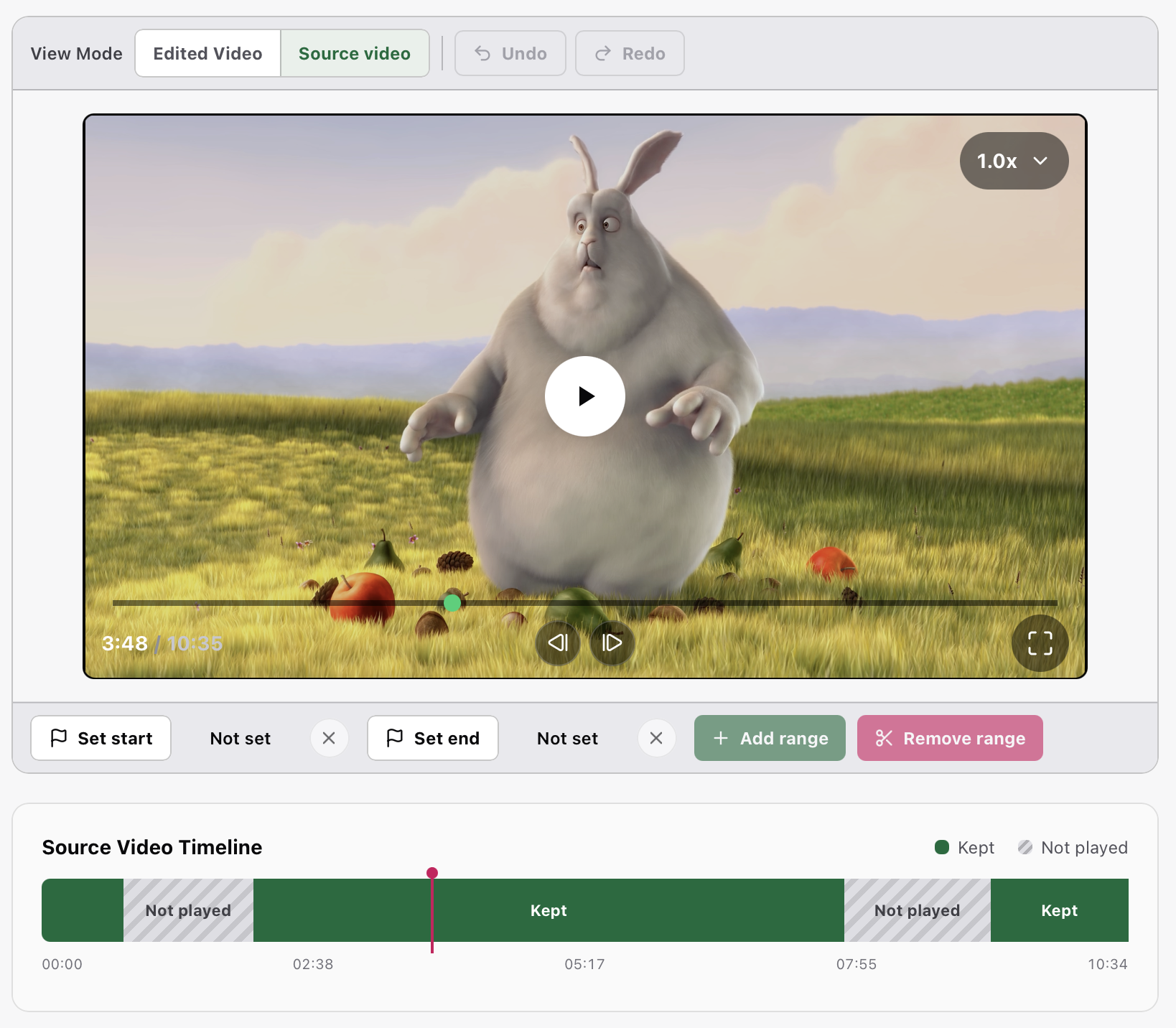
- Select Cut editing on Select editing mode.
- Play the video or use the player timeline to move to the beginning of the range you want to edit.
- Select Set start, move to the end of the range, and then select Set end.
- Select Keep range to use only the selected range, or Remove range to exclude it.
- Repeat these steps as needed. Use Undo to reverse the previous action and Redo to reapply it.
- Use Edited Video under View Mode to play the finished result. Switch to Source video to review removed ranges or restore one with Add range.
- Select Save edit, review the title and details, and save.
When creating a new cut-edited video, you can select Archive the source video used when saving. The source video is not deleted and can be restored from the archive.
Composition editing steps
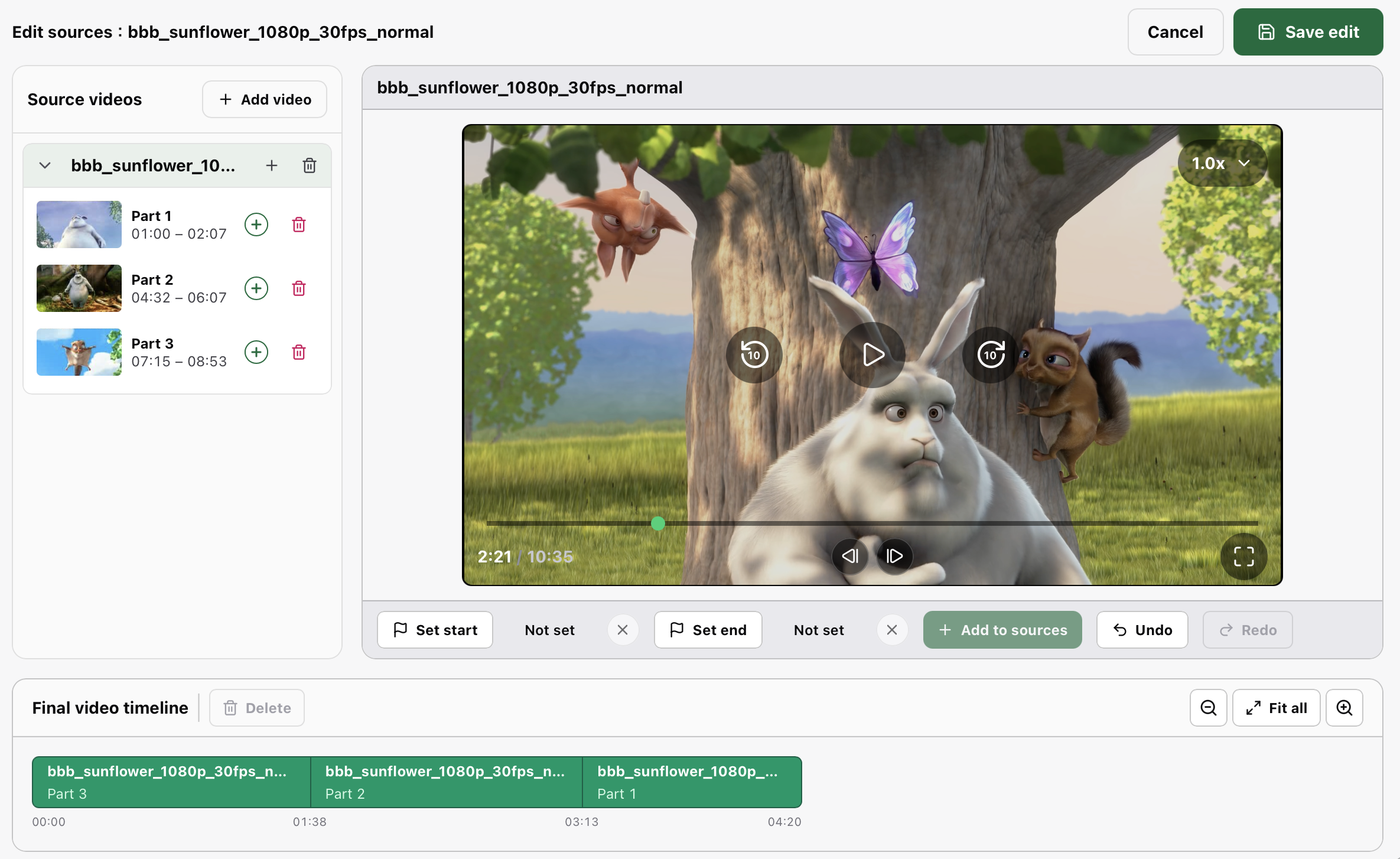
- Select Composition editing on Select editing mode. The video you started from is already listed under Source videos.
- To use other videos, select Add video and choose them.
- Select a source video and set the start and end positions for the range you want to use.
- Select Add to sources to register the selected range as a part. To use the entire video, use the add button beside its title.
- Drag a part to the Final video timeline. You can also use the part’s add button to append it to the timeline.
- Drag clips on the timeline into the order in which you want them to play. Select and delete any clips you do not need.
- Select the final video timeline and use Preview output to check the transitions and order.
- Select Save edit, review the title and details, and save.
Source videos and edited videos
Your source videos remain unchanged
Neither editing mode changes the source video files. Saving an edit creates a separate edited video.
Organize edited videos just like other videos
Saved edited videos work like other videos in your library. You can keep them in Videos, put them in a Series, or add them to a Playlist.
Editing does not increase video storage usage
An edited video does not save a new video file. It records which ranges of the source videos to play and in what order. As a result, creating an edited video does not increase your video storage usage.
You cannot delete a source video while it is in use
Edited videos refer to their source videos during playback. Therefore, you cannot delete a source video while an edited video uses it. To delete the source video, first delete the edited video that uses it or remove that source from the composition. If you only want to hide it from the main library, archive it instead.